
Report Scheduling
With the Report Schedule settings, you get to set up what reports you want IndusTrack to create at a specified frequency and sent to specific team members.
To set up report schedules go to Settings > Reports > Schedule.
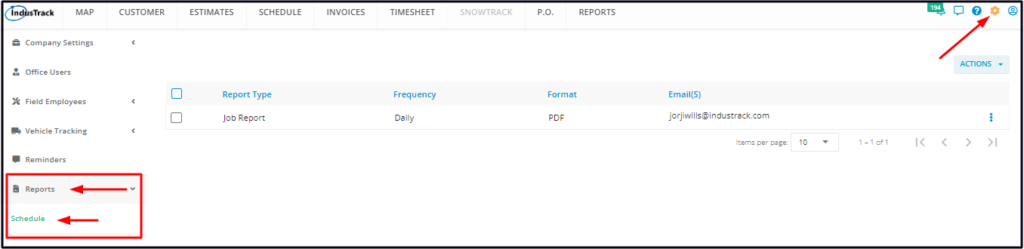
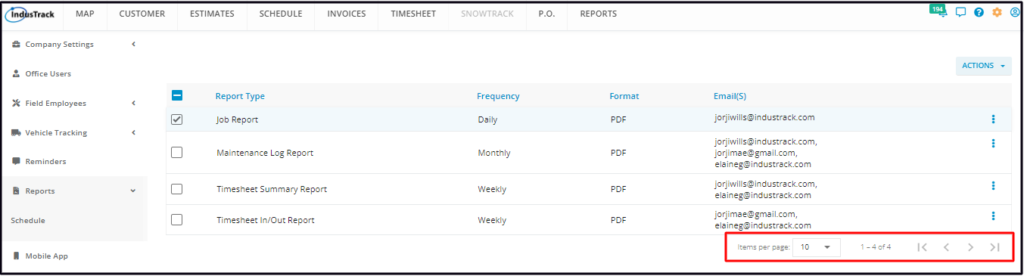
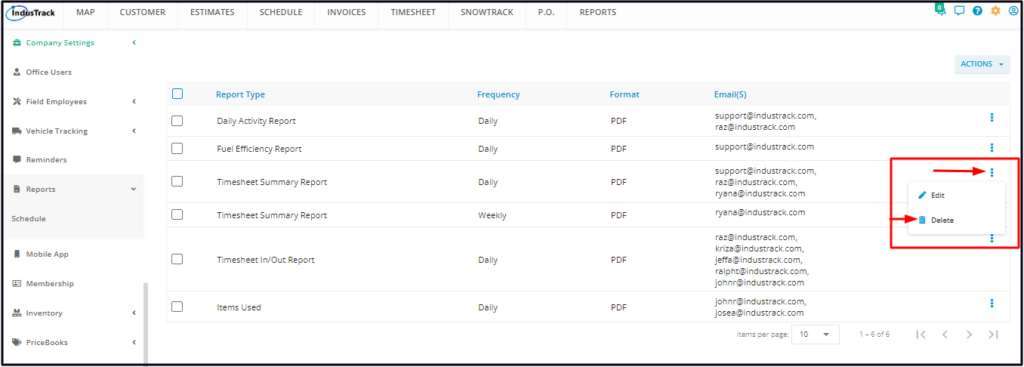
The Reports Schedule page defaults to the list of report types that have already been set up and are to be sent at a specified frequency.
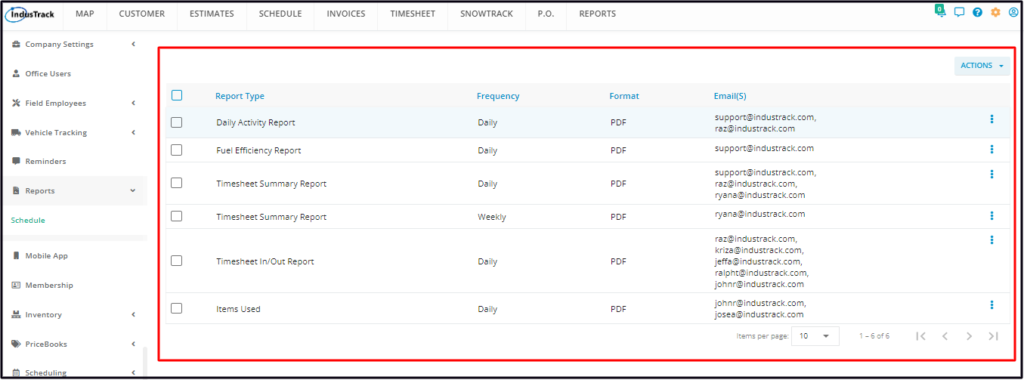
Using the Report Schedule table
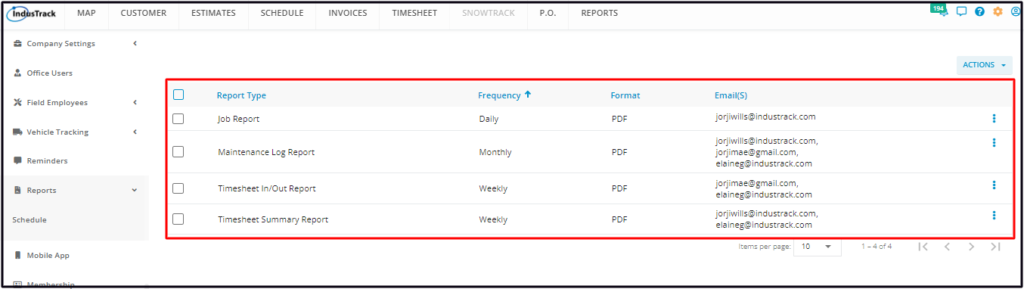
The Reports Schedule table has 5 columns. Details are based on what has been entered into the scheduler.
- Report Type – Refers to the specific report to be generated at the specified schedule.
- Frequency – Refers to how often a specific report is to be generated and sent by the system.
- Format – Refers to the report file type.
- Email(s) – Refers to the officers/supervisors/team members who will receive the reports on the specified frequency.
- 3-dot Menu – This is used to edit or delete a schedule.
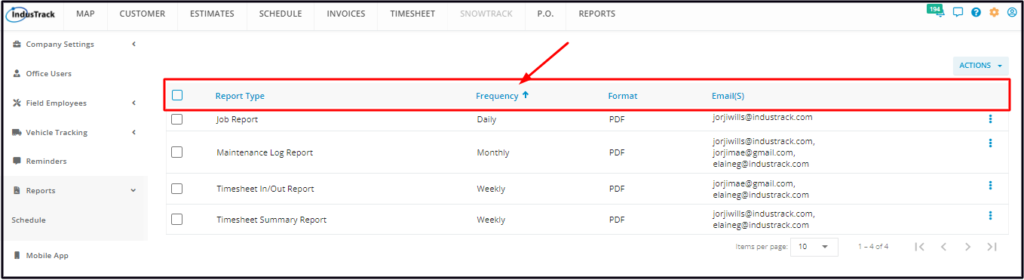
Sort the Reports Schedule list
Click on the column header to sort the list according to the preferred field.
List Per Page
Select the number of report schedules to be displayed per page. Options to choose from are 10, 25, 50, and 100. Use the Previous and Next buttons to move from one page to another (if there is more than one page).
Actions Button
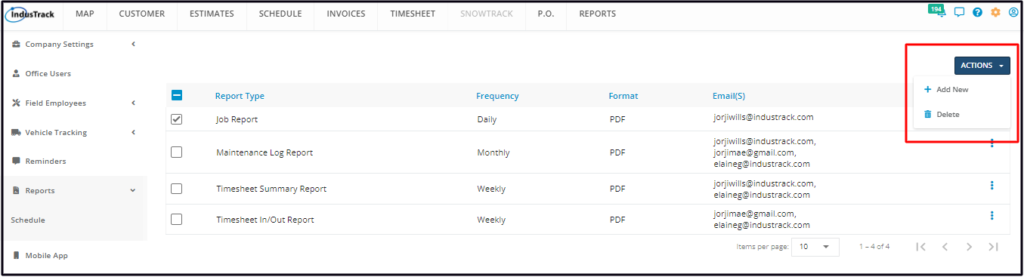
Use this button to add a new schedule or delete an old/obsolete one.
Set Up a Report Schedule
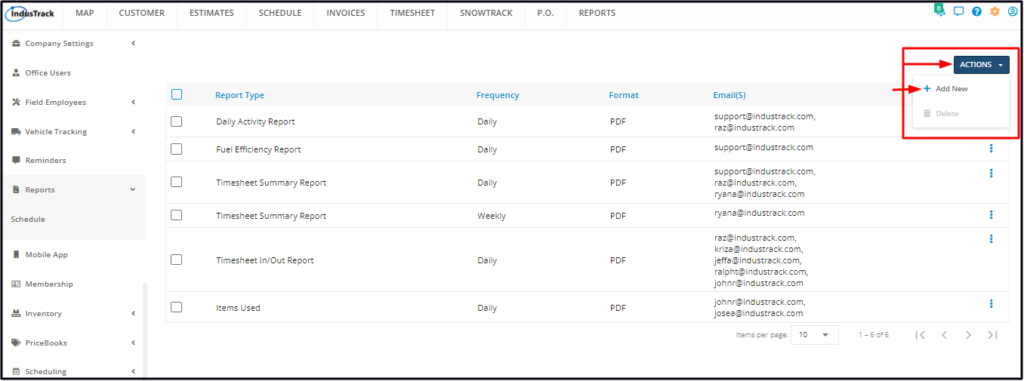
From the Schedule page, click on the Actions button and select + Add New.
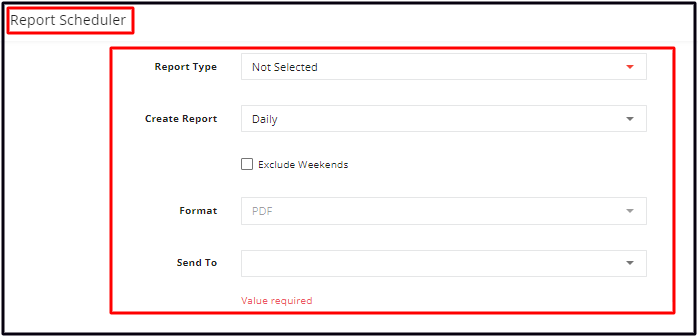
On the Report Scheduler window, set up the schedule or the frequency of when a specific report type should be generated and who should receive it.
Report Type
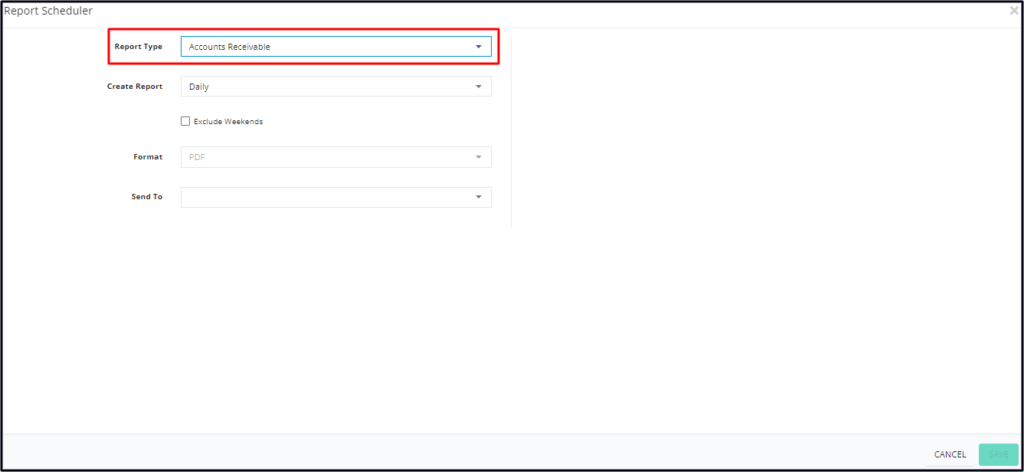
Select the type of report you would like to schedule from the drop-down list. The list contains different reports from Vehicles to Financials to Scheduling and more.
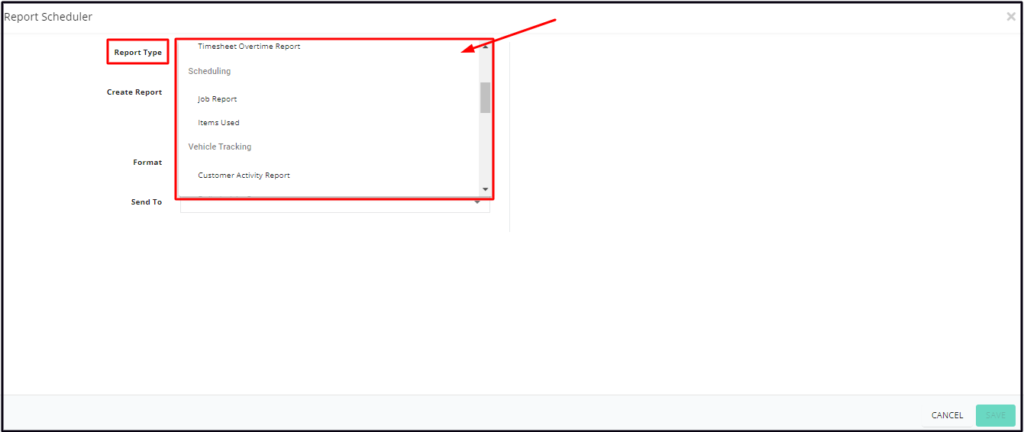
Depending on the selected type, additional information will have to be provided.
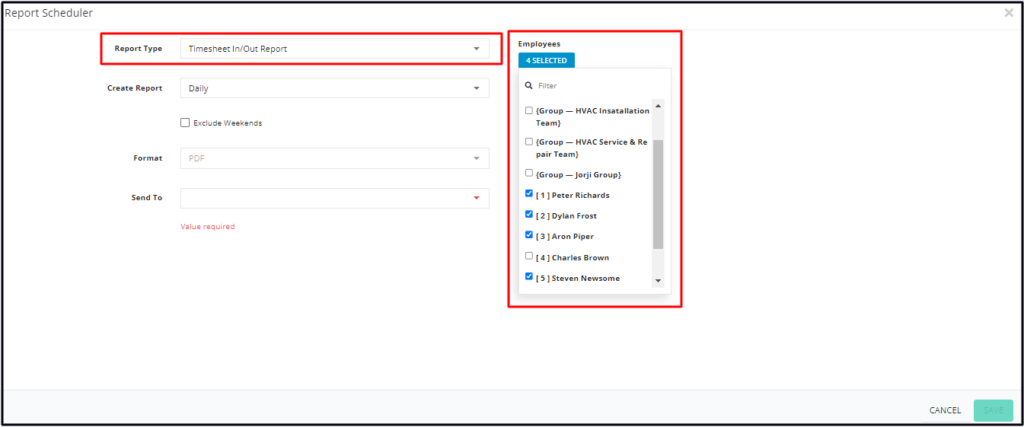
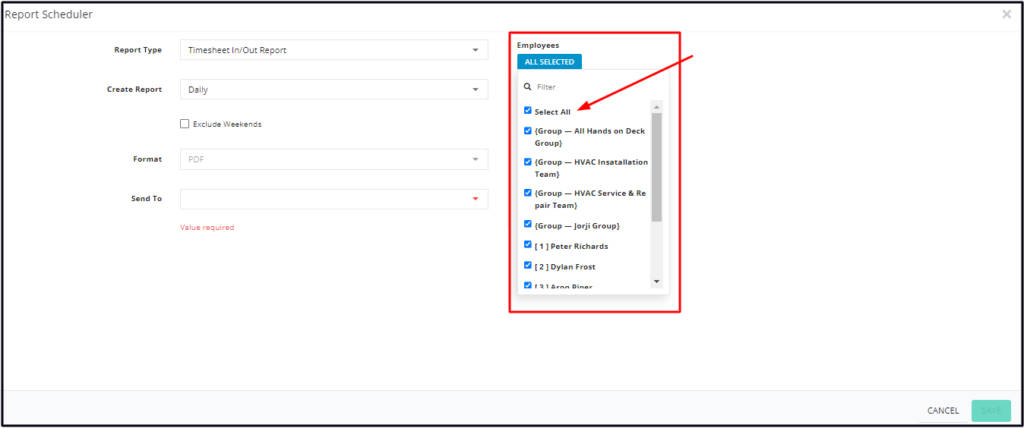
- Select which field employees or field employee groups will be included in the following reports:
- Timesheet Reports
- Job Report
- Snowtrack Reports
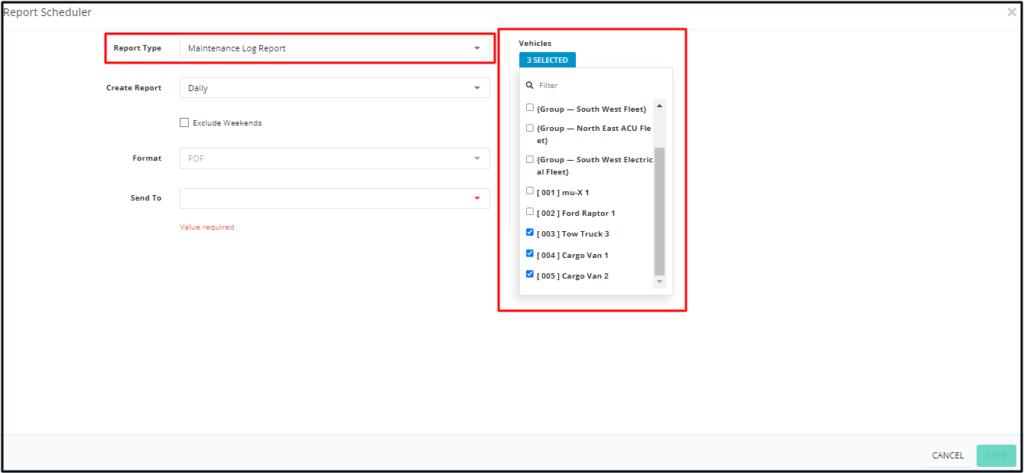
- Vehicles or Vehicle Groups are selected for the following reports:
- Vehicle Tracking Reports
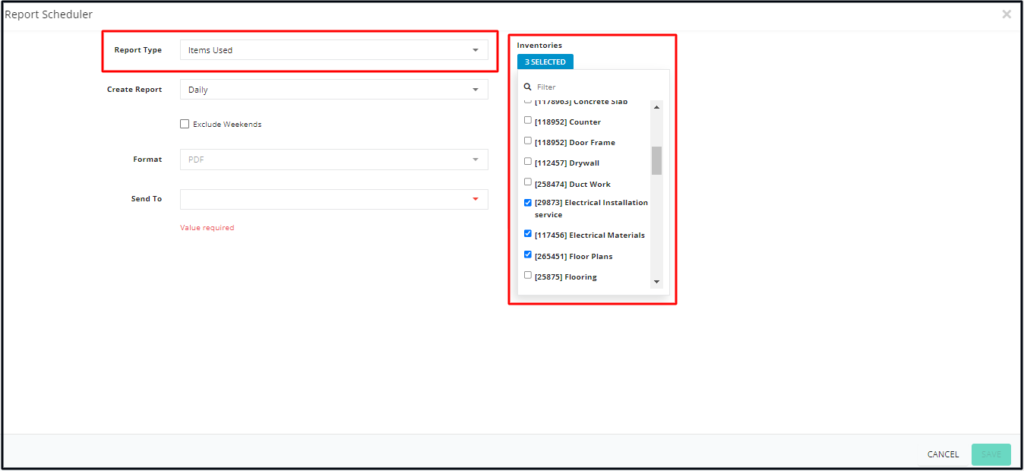
- Select which Inventory Items are selected for the following reports:
- Items Used Report
- No additional options are required for the Financials Reports.
If all of the field employees, vehicles, or inventories are to be included in the report tick the checkbox for Select All. This will auto-select all items on the list.
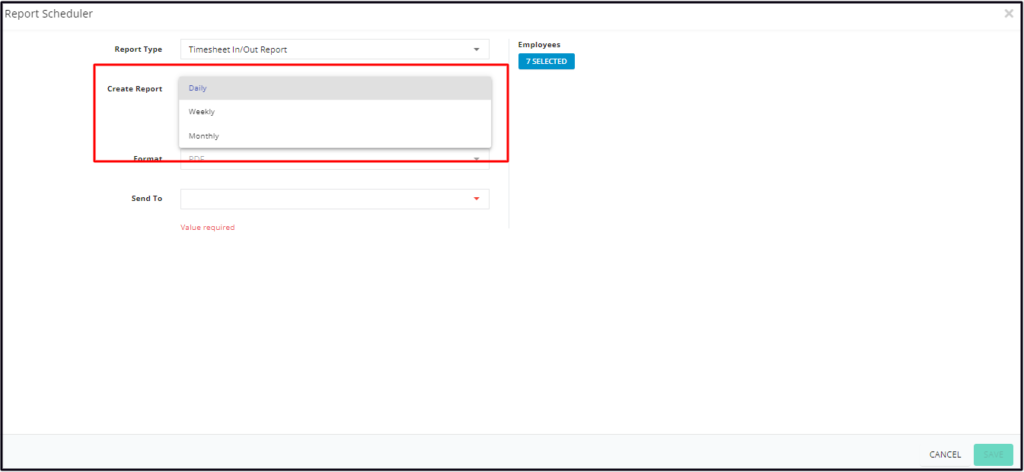
Create Report
Select the reporting frequency or how often should the report be created and sent to the recipients. Options are daily, weekly and monthly.
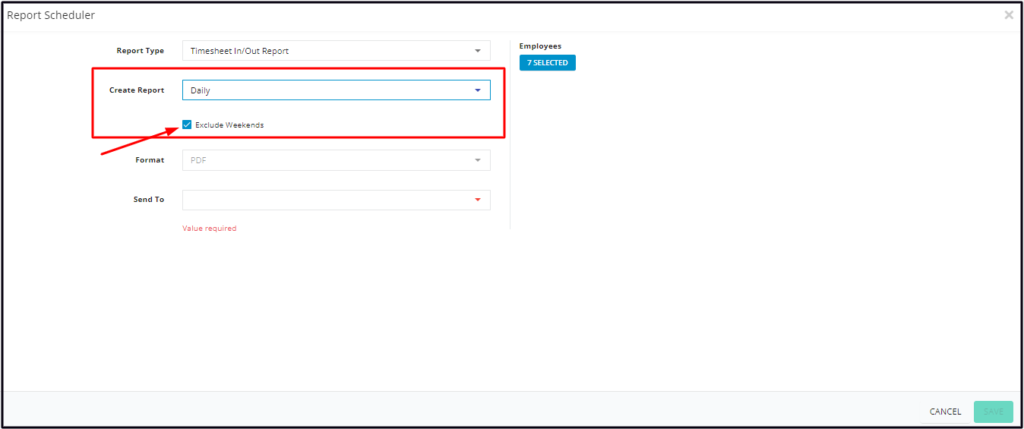
If Daily is selected as the frequency, indicate if the report will also be sent during the weekends. If the preference is not to send the report on weekends, tick the checkbox of Exclude Weekends. Leave this box unchecked if weekend reports are preferred.
Format
The default format of the reports is PDF.
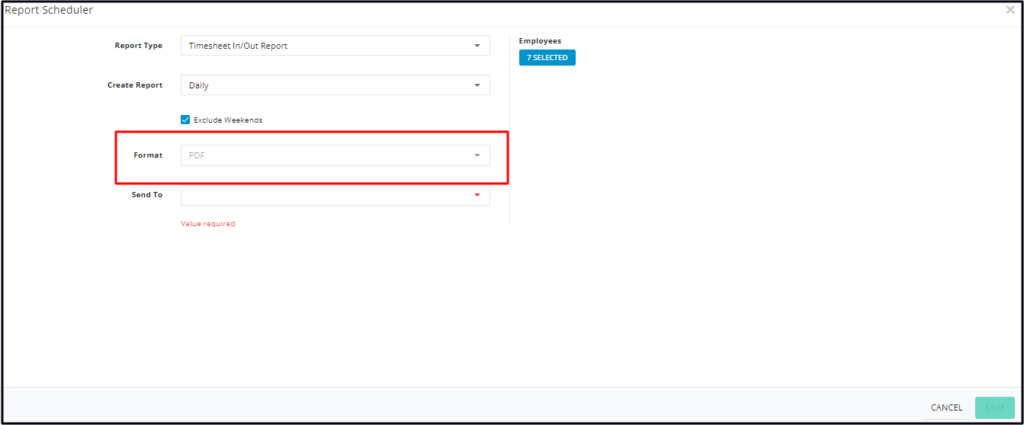
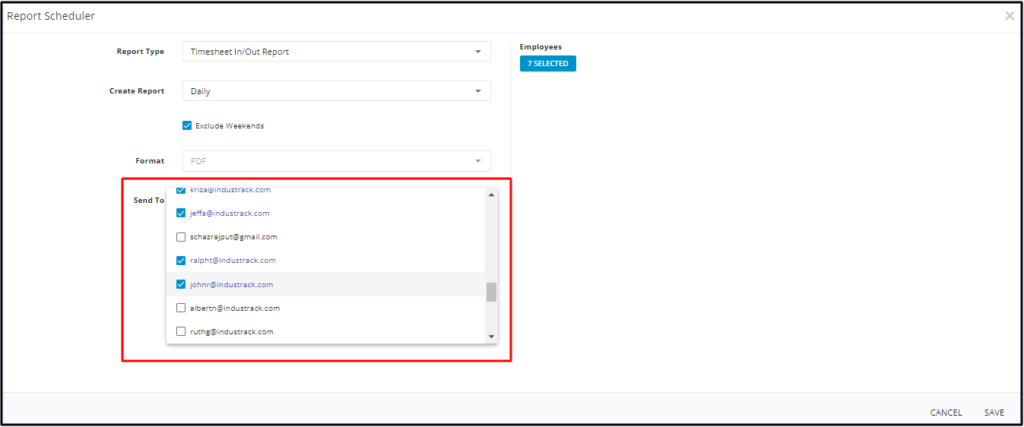
Send To
Select the recipient(s) of the generated report.
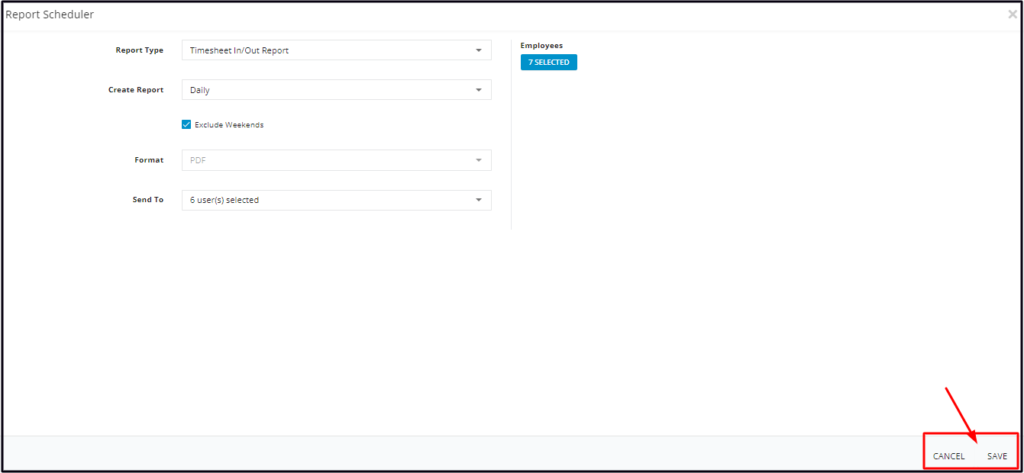
Enable the report schedule by saving. This will be added to the list.
Edit a Report Schedule
Want to change the reporting frequency or add another field employee? Simply edit the current report schedule.
Find the report schedule to be edited from the list. Click the 3-dot menu and select Edit.
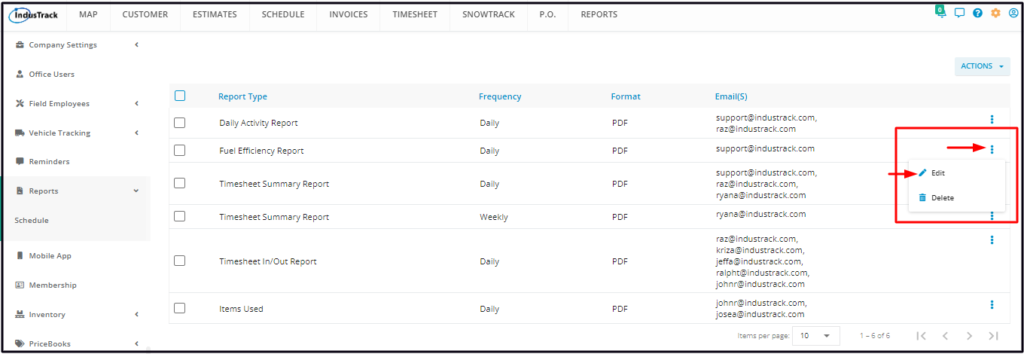
Edit the details as may be needed. Save once done.
Delete a Report Schedule
Find the report schedule to be removed from the list. Click the 3-dot menu and select Delete.
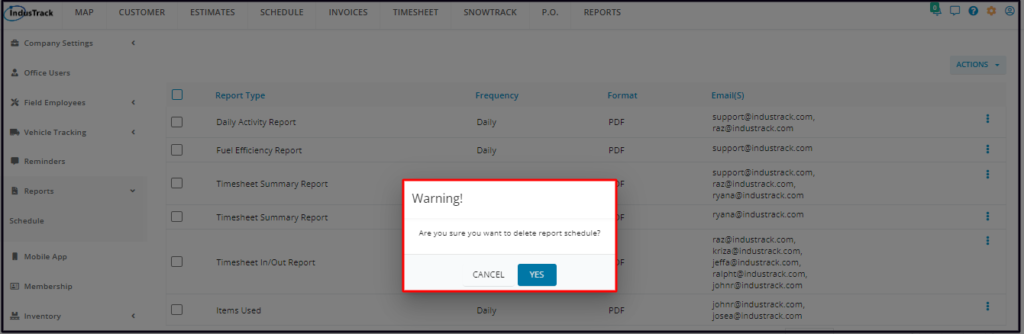
A confirmation window will come up. Select Yes to delete or Cancel to abandon the action.
The report schedule will be removed from the list.