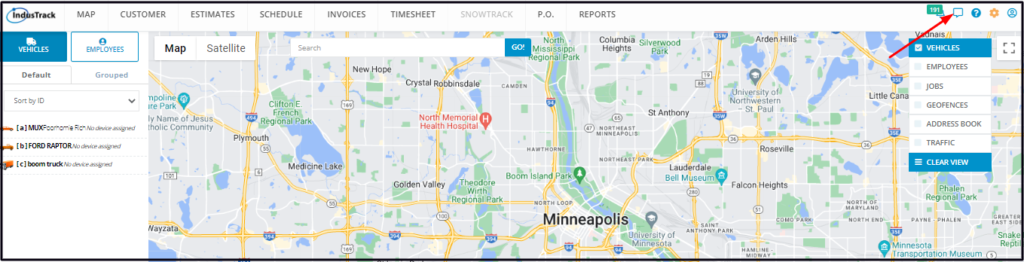
IndusTrack Home Page
Login to IndusTrack using the user name and password provided by the account administrator.
The default screen that will be displayed will be based on the permissions and settings provided by the administrator when your Office User profile was setup. This could either be the map, schedule or customer.
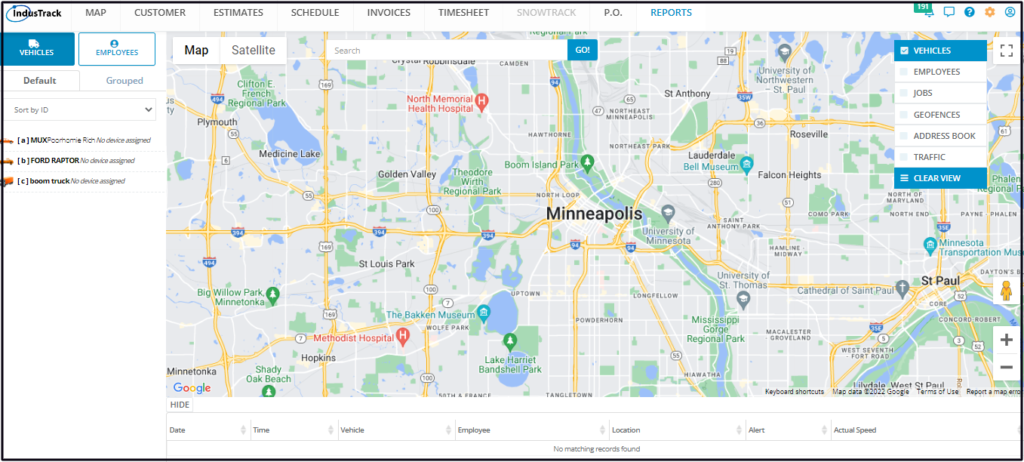
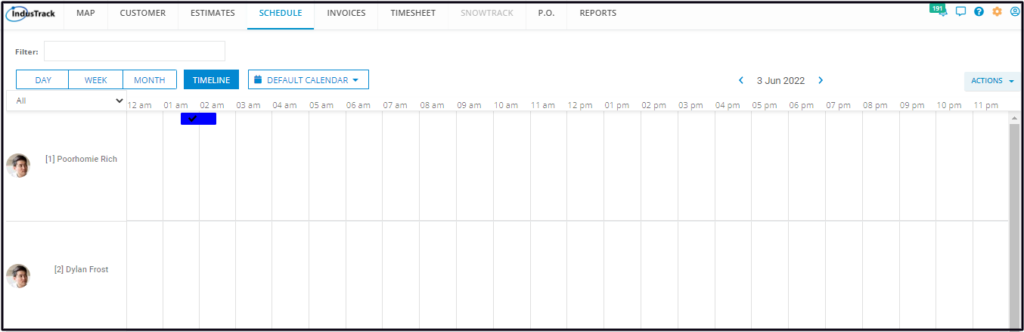
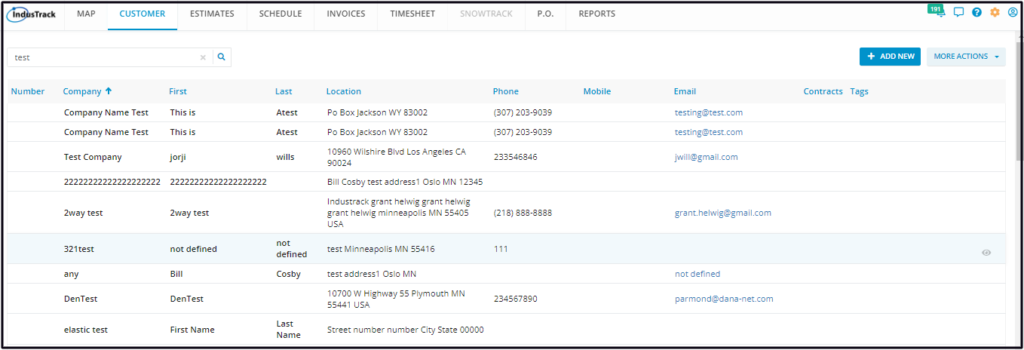
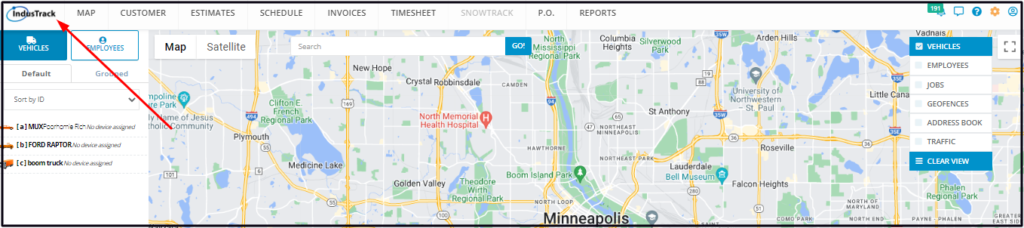
IndusTrack Logo
The IndusTrack Logo is the Homepage Header. If you are working from another page, click on this logo to go back to the Homepage.
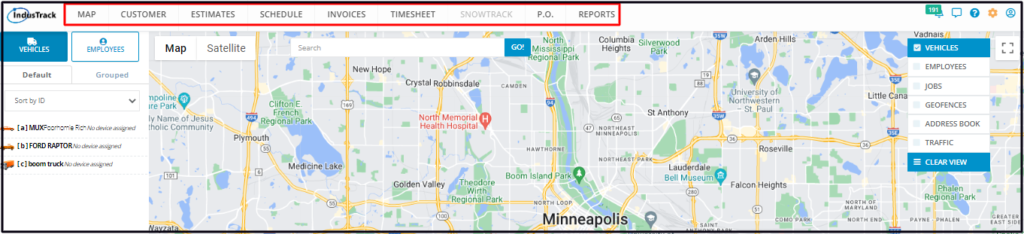
Module Headers
At the top of the screen are the module headers that you can access based on the permissions that have been assigned. If the header is greyed out, you do not have any access (either view or edit) to the module. If there is a module that does not appear, your company account does not have access to it.
Clicking on the header will bring you to the specific module page.
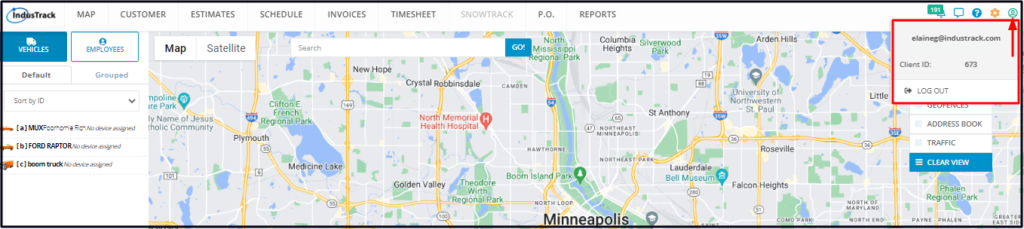
Account Icon
The Account icon has two (2) functions:
- Access your profile settings in edit mode.
- Just click on your user name and this will bring you to your profile settings page.
- Log out of the system.
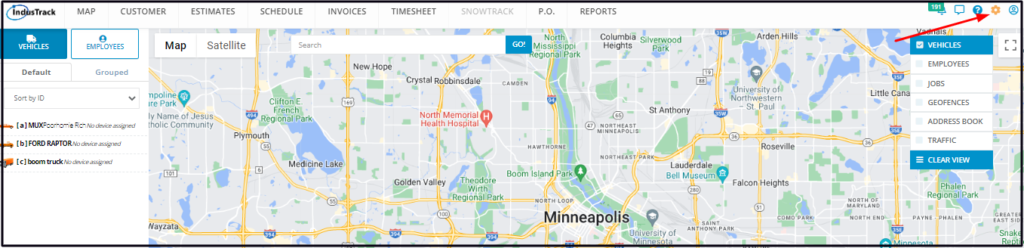
Cog/Wheel Icon
Click on the Cog/Wheel Icon to access the Settings page.
Reminders and Notifications Bell
When an event or reminder becomes due, notifications are sent to specified accounts. Clicking on the Bell icon will show the list of notices.
Help Icon
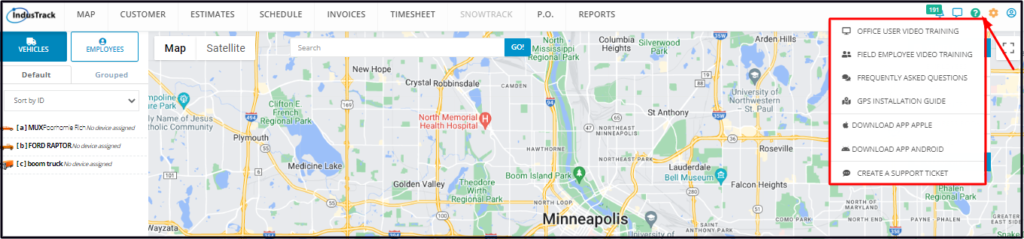
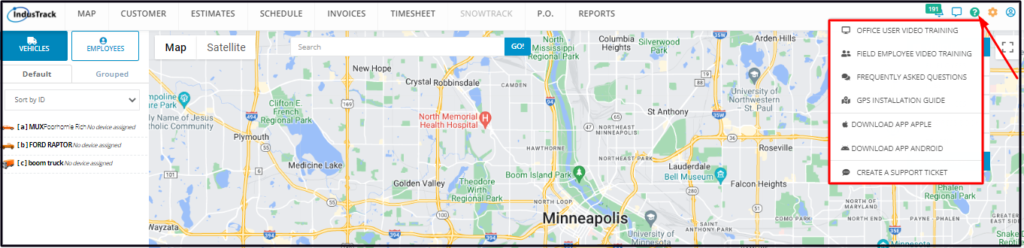
To create support tickets and access FAQs, video training materials, and other guides, click on the Help icon.
Dialogue Icon
Click on the Dialogue Icon to access the messages page.