Log Maintenance
When a maintenance event occurs, either scheduled or not, record the details on the maintenance log. Data posted on this tab are used for the tracking of maintenance costs and activities and the generation of complete reports.
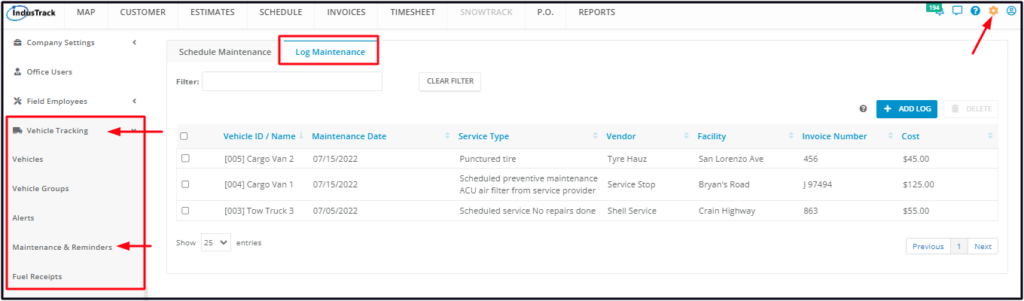
To document a completed vehicle maintenance schedule, go to Settings > Vehicle Tracking > Maintenance & Reminders > Log Maintenance.
Maintenance Log List
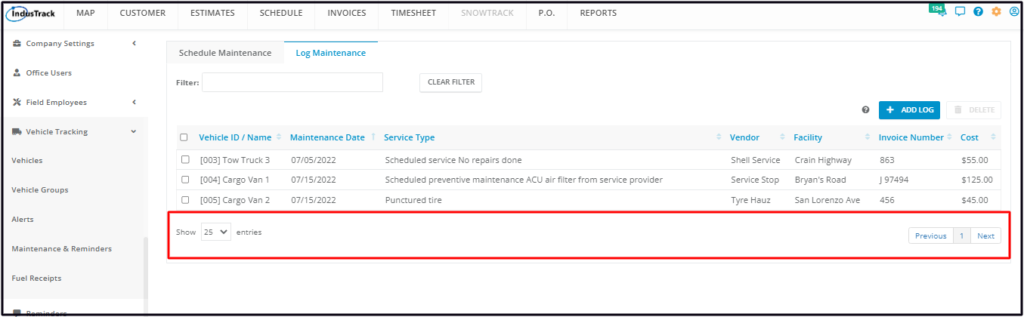
The Log Maintenance tab of the Maintenance & Reminders page defaults to the Maintenance Log List presented in table format. Information about the different vehicle maintenance or service is displayed on the table.
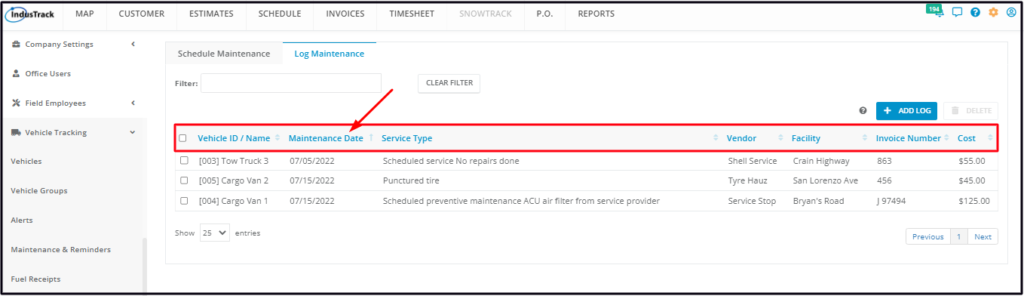
The Maintenance log table has 7 columns:
- Vehicle ID/Name – Refers to the vehicle’s name or ID.
- Maintenance Date – Refers to the date when the service was done or completed.
- Service Type – Refers to the service performed on the vehicle.
- Vendor – Refers to the service provider.
- Facility – Refers to the service location.
- Invoice Number
- Cost – Refers to the total cost incurred in the performance of the service.
Sort the maintenance log list
Click on the column header to sort the log list according to the selected category.
Filter Bar
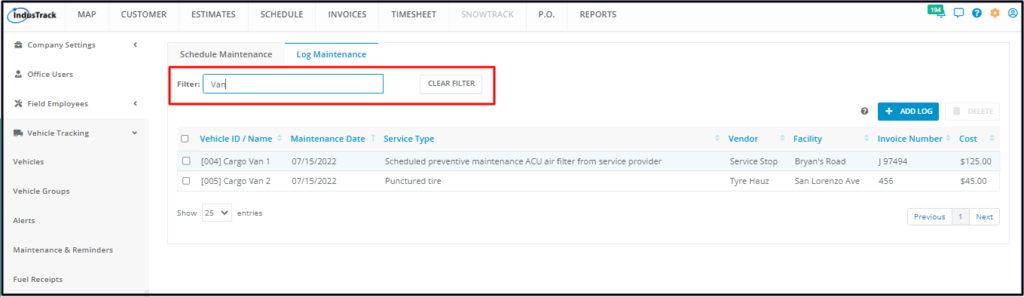
Key in the information you are looking for on the Filter bar and matching information will populate the table.
Clear Filter Button
Click this button to reset the table to its default format (remove the filter).
List Per Page
Select the number of logs to be displayed per page. Options to choose from are 10, 25, 50, or 100. Use the Previous and Next buttons to move from one page to another (if there is more than one page).
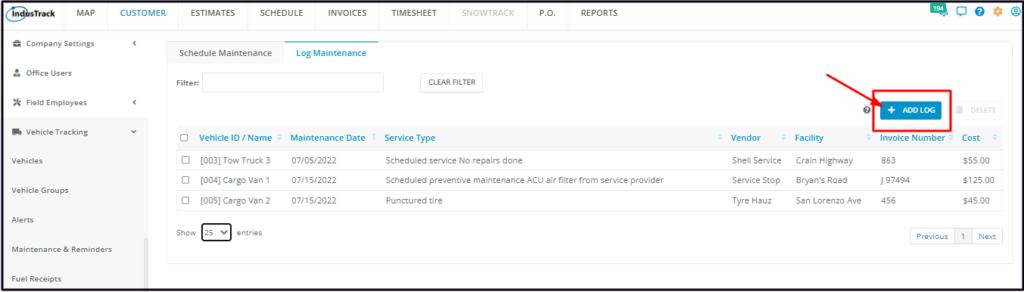
+ Add Log Button
Create a new vehicle maintenance log using the + Add Log button.
Delete Button
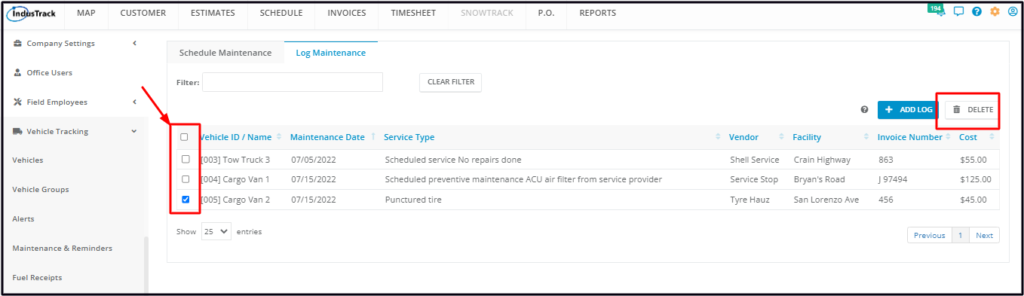
Remove obsolete vehicle maintenance logs or those created in error using the Delete button. By default, this button is disabled. Tick the schedule checkbox or checkboxes to enable it.