Vehicles
Vehicles are one of the most important assets of your business. In IndusTrack, you get to track where they are and what they are doing, monitor when they are due for maintenance and registration, receive maintenance alerts and extract reports on their performance. To be able to do these the vehicles and installed devices have to be set up correctly.
From the backend, Office Users create and manage Vehicle profiles depending on their permissions.
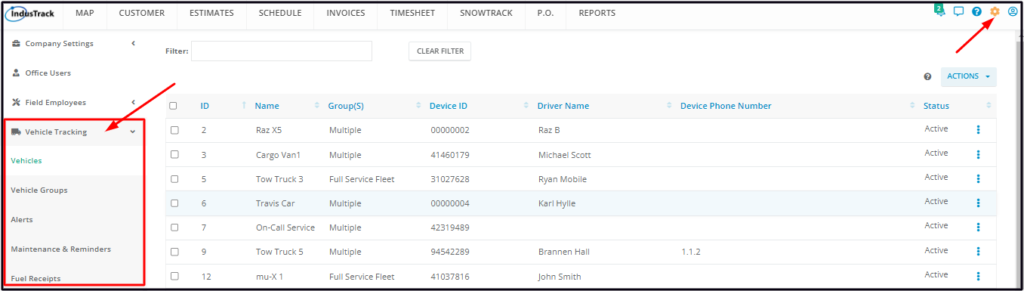
To access the Vehicle setup page, go to the Settings (Gear) Icon > Vehicle Tracking. This will expand to 5 sections:
- Vehicles
- Vehicle Groups
- Alerts
- Maintenance & Reminders
- Fuel Receipts.
Vehicles
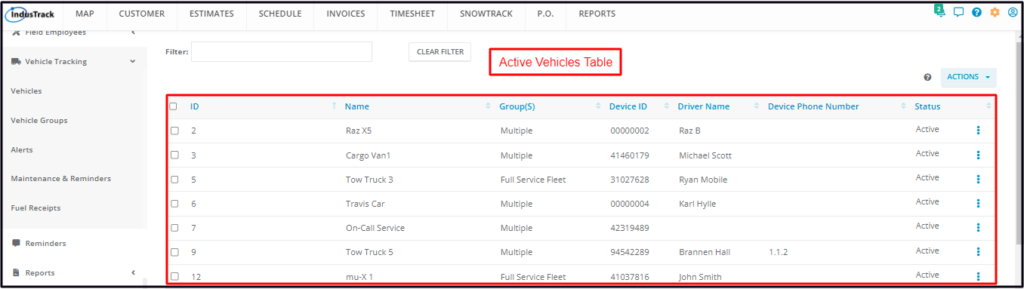
The Vehicles page defaults to the Active Vehicles table which contains all of the vehicles that have an Active status. This is also the page where vehicles are created and deactivated.
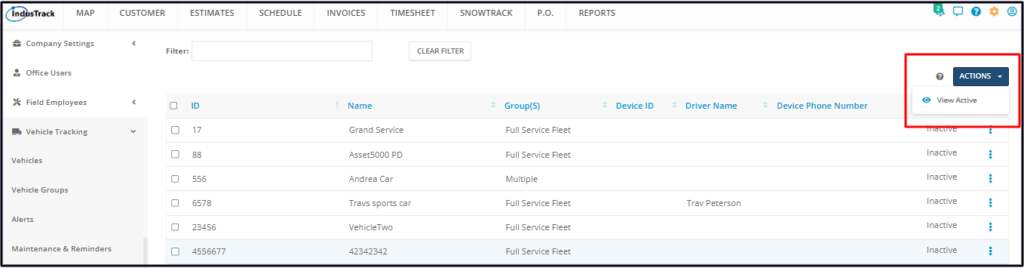
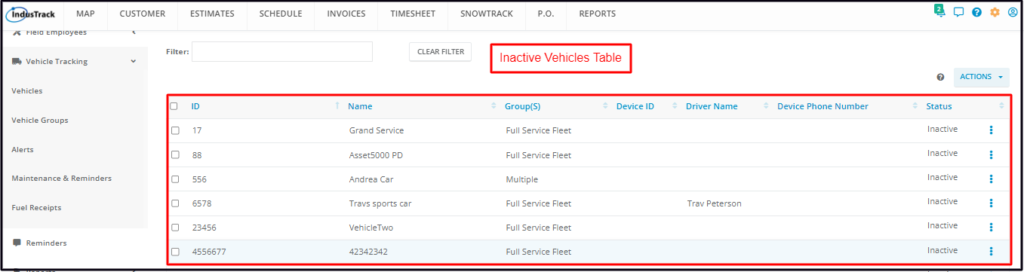
When Vehicles are deactivated, their profiles are moved to the Inactive (Deactivated) Vehicles table. To switch tables, click the Actions button and select to view the other table (View Active or View Inactive).
Using the Vehicles Tables
Both the Active and Inactive tables have 8 columns:
- ID – The vehicle’s unique ID code.
- Name – The name given to the Vehicle.
- Group(s) – The Vehicle Group that the vehicle has been assigned to. If “multiple” is shown, this means that the vehicle is assigned to more than one group.
- Device ID – Refers to the ESN serial number of the device installed in the vehicle, if there is one.
- Driver Name – The name of the Field Employee to whom the vehicle is assigned.
- Device Phone Number
- Status – either Active or Inactive.
- Action Button (3-dot menu)
- For the Active Vehicles table – Used to Edit or Deactivate a Vehicle or Set or Log Maintenance of the vehicles.
- For the Inactive Vehicles table – Used to Reactivate or Delete an Inactive Vehicle
Sort the Vehicles list
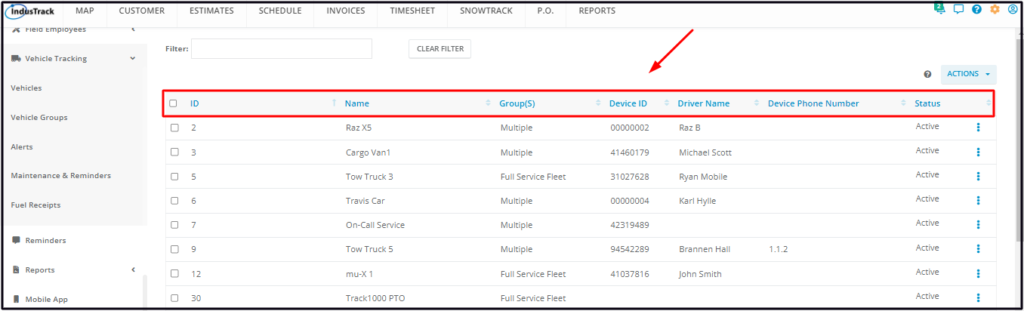
Click on the column header to sort the list according to the preferred field. This works for both tables.
Filter Bar
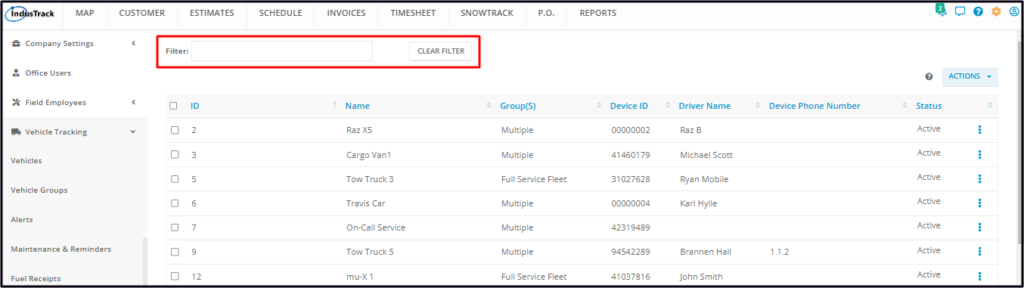
Key in the information you are looking for on the Filter bar and matching information will populate the Vehicles table.
Clear Filter Button
Click this button to reset the table to its default format (remove the search).
The Filters feature is enabled for both Vehicles tables.
List Per Page
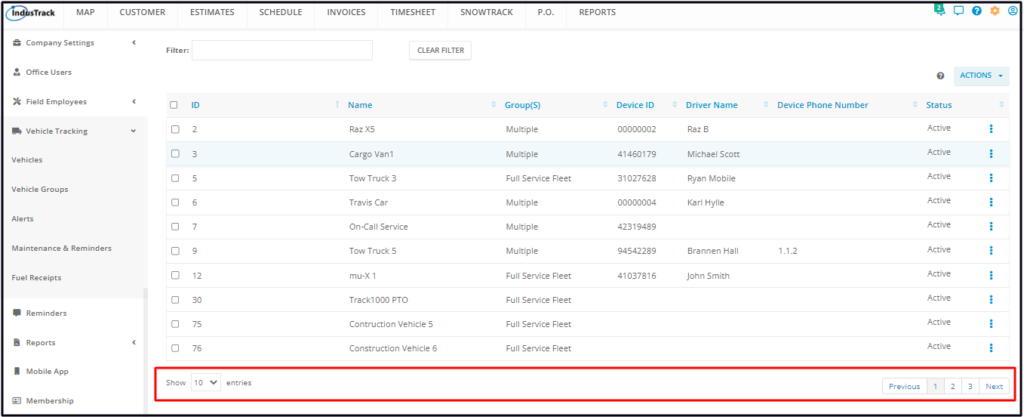
Select the number of vehicles to be displayed per page. Options to choose from are 10, 25, 50, 100. Use the Previous and Next buttons to move from one page to another (if there is more than one page).
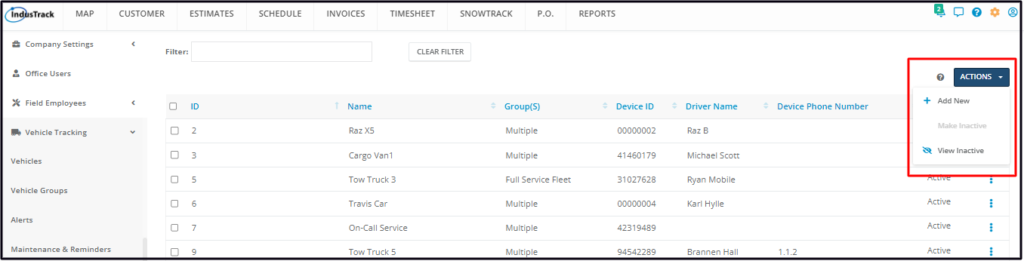
Actions Button
Active Vehicles Table – Used to create or deactivate a vehicle, and to move to the Inactive Vehicles table.
For the Inactive Vehicles table, this button is used to return to the active list.